Install Fedora
Install Fedora
- Select Language, Keyboard & Time.
- Select SSD or NVMe to install to.
- (Optional) Encrypt drive with a passphrase (Good for laptops and travel computers.)
- Set username and password.
- Run installer and then reboot. (If dual booting, select your Fedora drive in the boot menu.)
Fedora Drivers and Repos
Update Fedora
Before doing anything else after installing a linux distribution, perform a system update to ensure everything is current prior to installing software and drivers.
sudo dnf update && sudo dnf upgradereboot
Install Flathub Repo
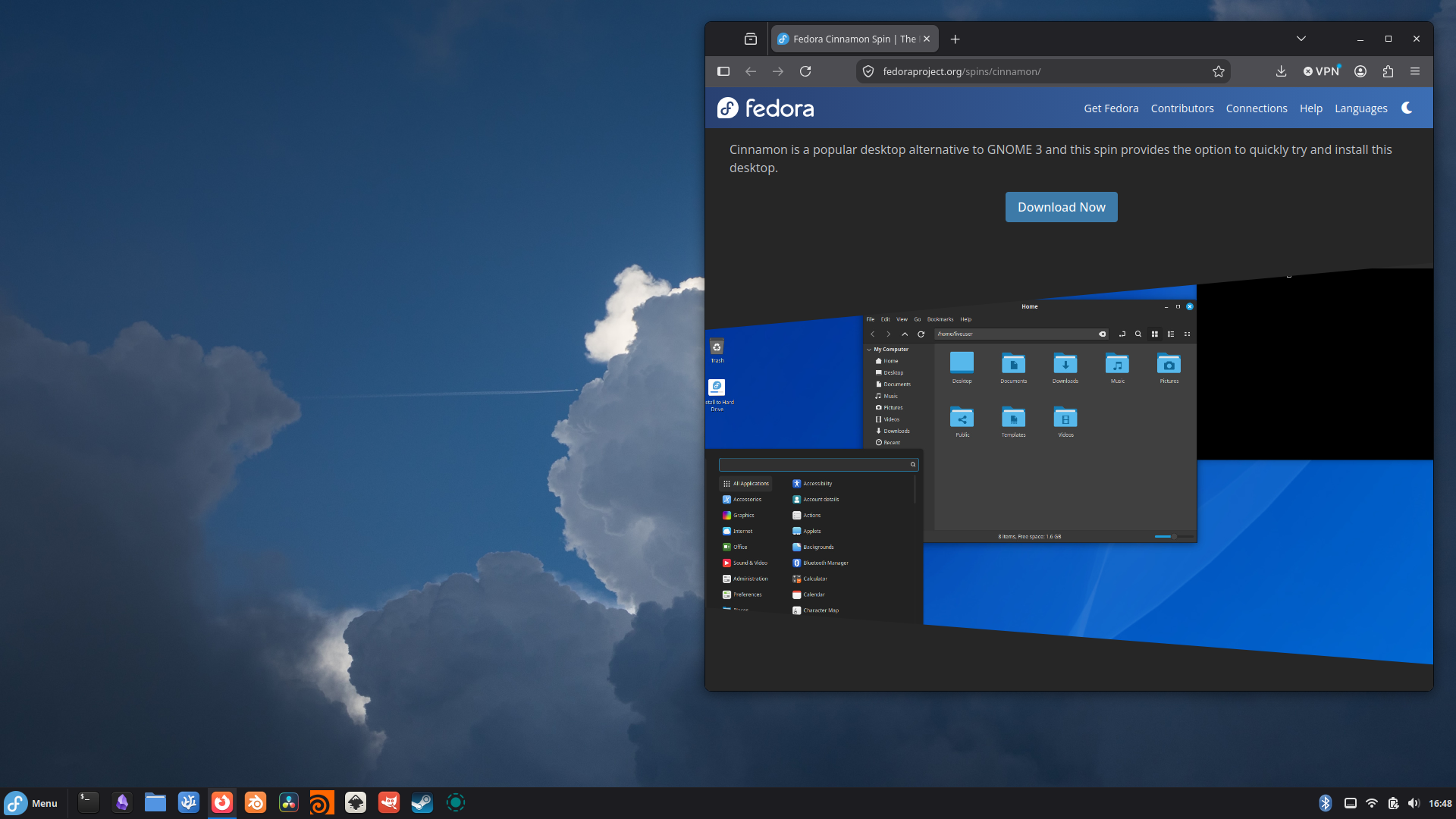
https://flathub.org/en/setup/Fedora. This step is necessary if you are not installing the main workstation editions. Since we are using the cinnamon spin, it is recommended.
flatpak remote-add --if-not-exists flathub https://dl.flathub.org/repo/flathub.flatpakrepo
Install RPM Fusion Repos
https://rpmfusion.org/Configuration
sudo dnf install https://mirrors.rpmfusion.org/free/fedora/rpmfusion-free-release-$(rpm -E %fedora).noarch.rpm https://mirrors.rpmfusion.org/nonfree/fedora/rpmfusion-nonfree-release-$(rpm -E %fedora).noarch.rpmsudo dnf config-manager setopt fedora-cisco-openh264.enabled=1
Install NVIDIA Drivers
https://rpmfusion.org/Howto/NVIDIA
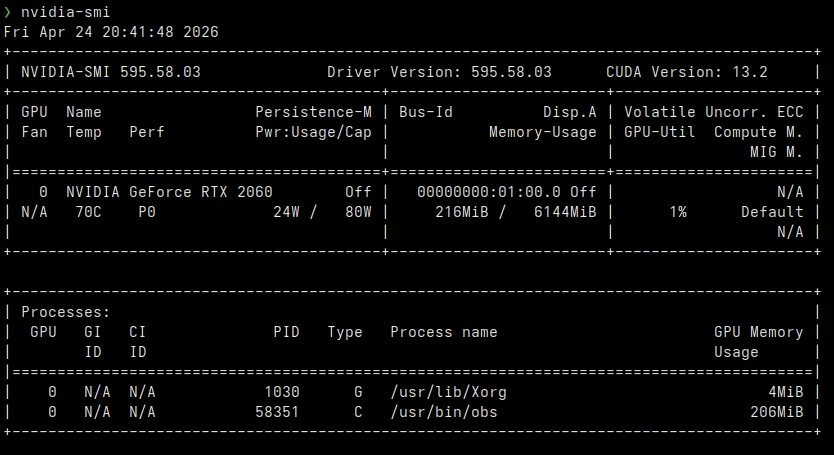
sudo dnf update -ysudo dnf install akmod-nvidiasudo dnf install xorg-x11-drv-nvidia-cudarebootnvidia-smito verify installation worked and check driver/cuda version.
Software-Specific Requirements (Recommended anyways)
Install Fuse 2
This step is necessary if you want to use DaVinci Resolve Studio on Linux.
sudo dnf install fuse-libs
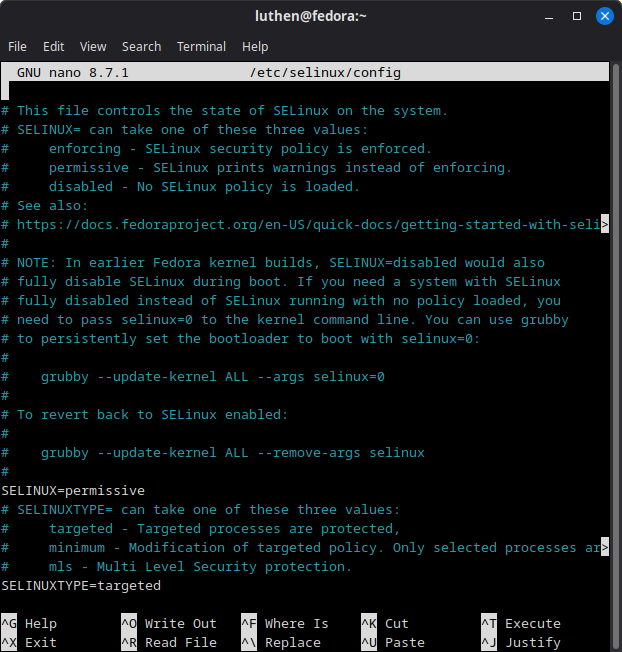
Set SELinux to Permissive
This step is necessary if you want to use Houdini and some server licensing on Fedora and RHEL distros.
sudo nano /etc/selinux/config- Change the line
SELINUX=enforcingtoSELINUX=permissive - Ctrl + S, Ctrl + X
reboot