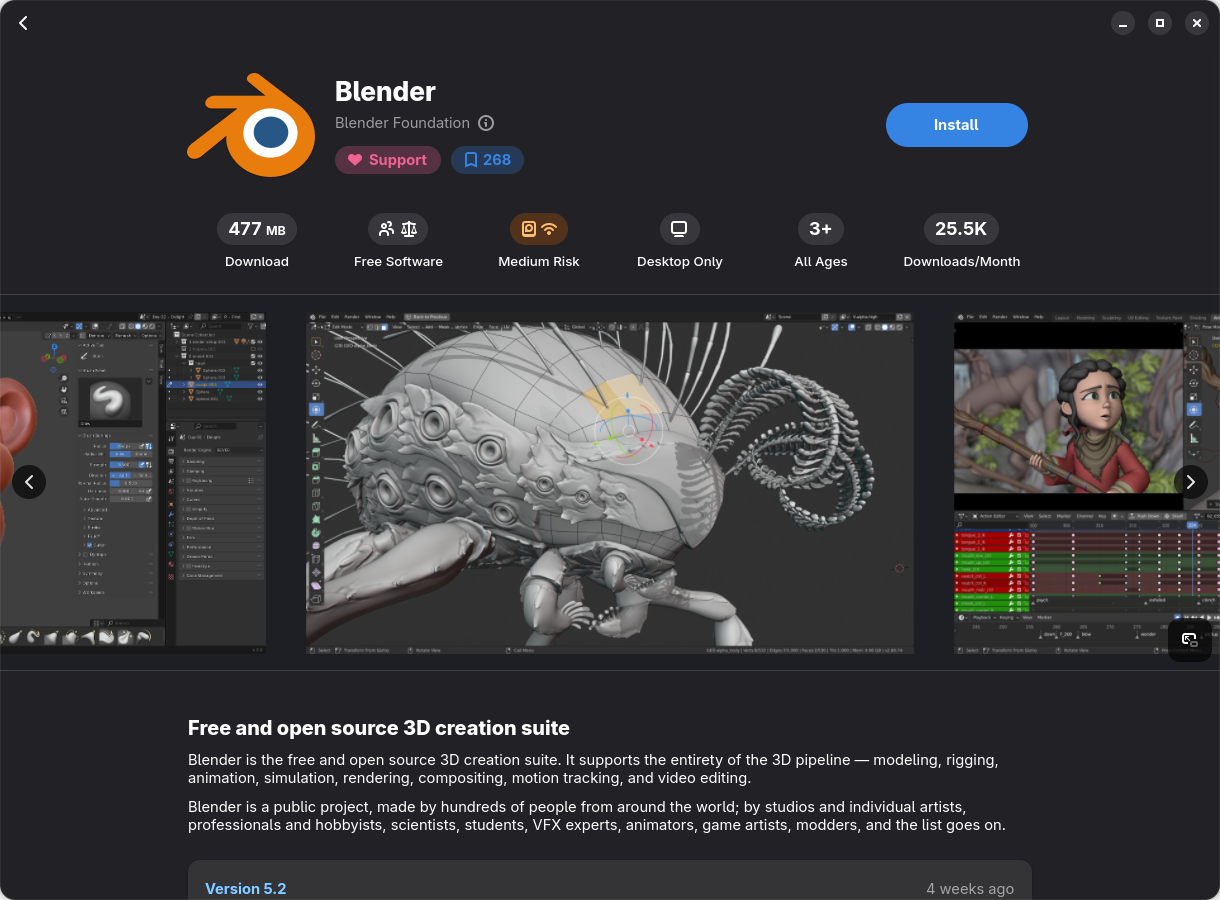
There are 3 primary ways to install Blender on Linux. Download from www.blender.org, install via your native package manager(which has its own caveats), or via flatpak in a sandboxed environment.
Flatpak Install (Recommended - Most universal option with auto-updates.)
- Make sure flatpak is installed.
- Run
flatpak install flathub org.blender.Blenderin the terminal or select the Flathub version in the GUI of your distro’s software store. - If it does not show in your menu, then Log out and back in.
It should now show up in your menus under Graphics. You can also run it in the terminal via the command:
flatpak run org.blender.Blender
Fedora Flatpack Versions!
Always use the flathub package for the latest blender version. If you are using Fedora, DO NOT choose the fedora project Flatpak in the software store. It has GPU detection issues and ocassional version lag. (Non-issue if you are following the Fedora install guide on this website.)
Some distros have a GUI app store like Software Store or Bazaar preinstalled that you can use to install flatpaks without the terminal if you would prefer.
sudo pacman -S bazaar
Download & Install from Blender Website (Recommended - Most Reliable)
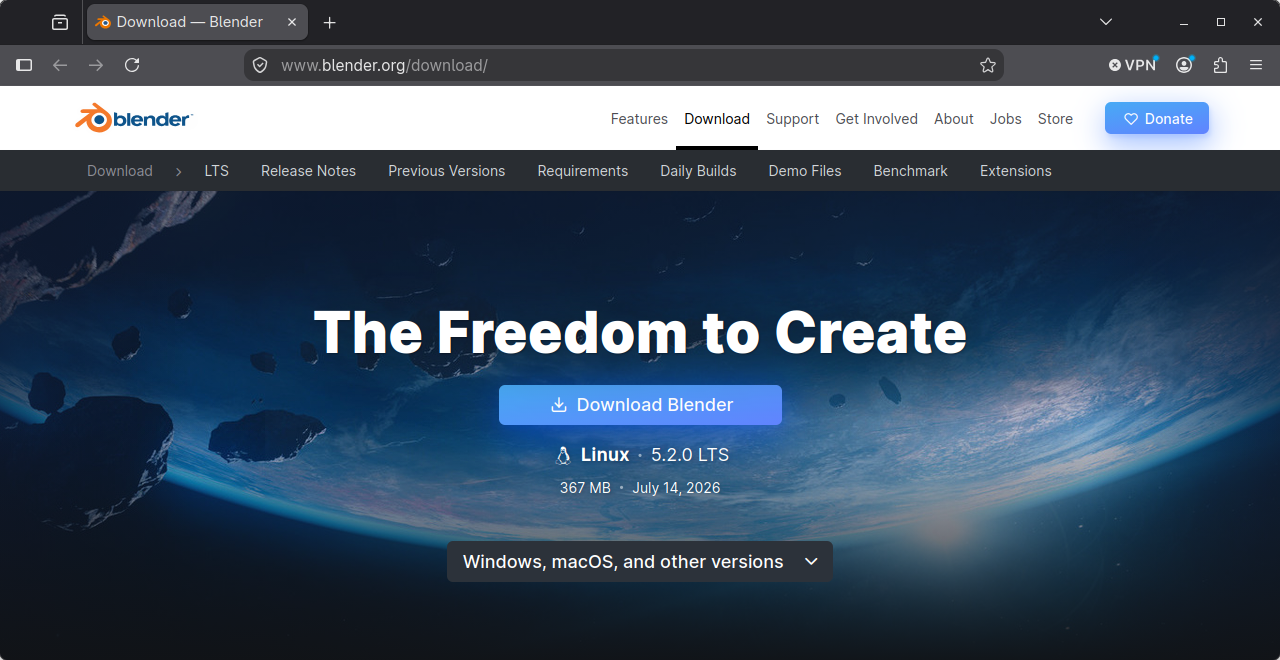
- Visit the Blender Website to download the latest version.
- Unzip it to your home folder (
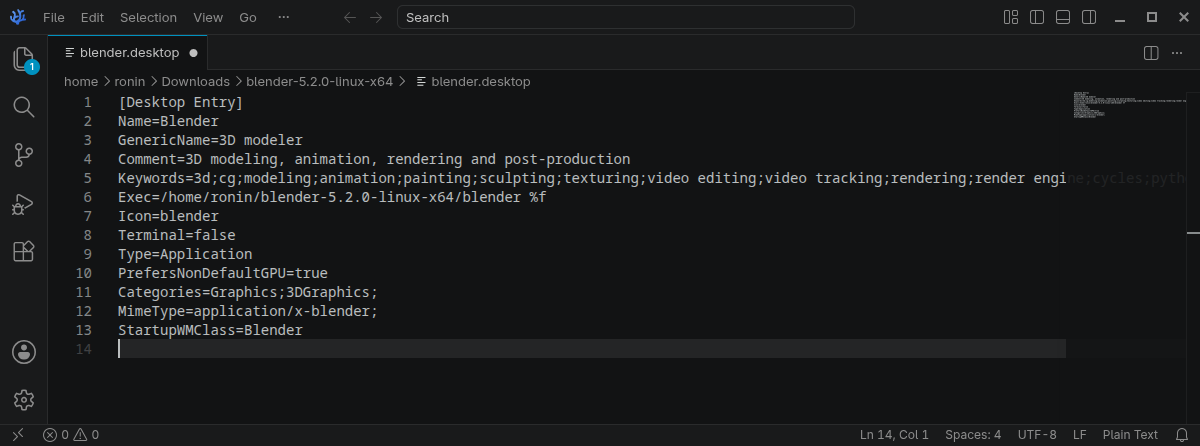
~/) folder and run the blender executable from the folder. - Inside the unzipped folder, find the file named
blender.desktop.- Copy/Paste it to
~/.local/share/applications. - Open the desktop file in a text editor.
- Replace the
Exec=line withExec=/home/YOUR_USERNAME/BLENDER_VERSION/blender %f(Be sure to swap in the correct folder and username!)- Example:
Exec=/home/ronin/blender-5.2.0-linux-x64/blender %f
- Example:
- Run
update-desktop-database ~/.local/share/applicationsto refresh the menu.
- Copy/Paste it to
- Blender should now show up in your menu under Graphics. If it does not show up still, log out and back in and it should show up correctly.
Install via native package manager (Fastest but with Caveats)
Depending on the distro you are running, blender may or may not be up-to-date with the latest release, and depending on the distro policies, may be compiled missing certain features due to licensing.
Fedora/RHEL Binary
sudo dnf install blenderLags behind in versions sometimes and has no Optix support due to strict open source-only policies at Fedora, Not recommended method.
Arch/CachyOS
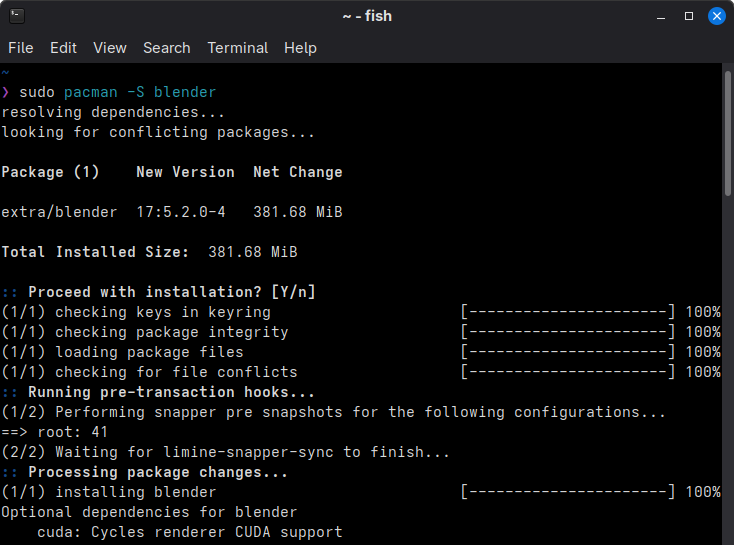
sudo pacman -S blenderUseable, works great, stays up-to-date but is compiled using system python, meaning a very select few addons like Lens Sim by Håvard Dalen that use the blender specific python/pip libraries will not work.
Debian/Ubuntu/Linux Mint
sudo apt install blenderVersion is always about a year behind, but otherwise supports all included features. Not Recommended.
Other Methods
There are other third-party methods like the AUR on Arch or Snaps on Ubuntu, but are not recommended and should generally be avoided for stability and security reasons.
Arch User Repository
On Arch the AUR provides a Blender LTS binary that allows you to recieve updated LTS-only versions.
Use the AUR at your own risk. https://aur.archlinux.org/
paru -S blender-lts-bin
Snaps
Snaps are the official blender distribution of blender on Linux, but if you do a quick google search you will find hundreds of opinions about Canonical, Ubuntu and Snaps specifically and why most avoid them.
sudo snap install blender --classic
Troubleshooting
Keybind Conflict
Be sure if you are installing with gnome, kde or cinnamon, that you swap the alt-mouse with super-mouse to avoid blender navigation conflicts. See the Blender Documentation for details.