Installing DaVinci Resolve on Linux is not complex, but may take a few additional steps if you aren’t using RHEL binary distros, which you probably aren’t.
How I Use DaVinci Resolve
See My Full DaVinci Resolve 3D, VFX & Color Grading Pipeline
Install DaVinci Resolve (Studio and Free)
- Download the free or studio version of DaVinci Resolve from https://www.blackmagicdesign.com/products/davinciresolve.
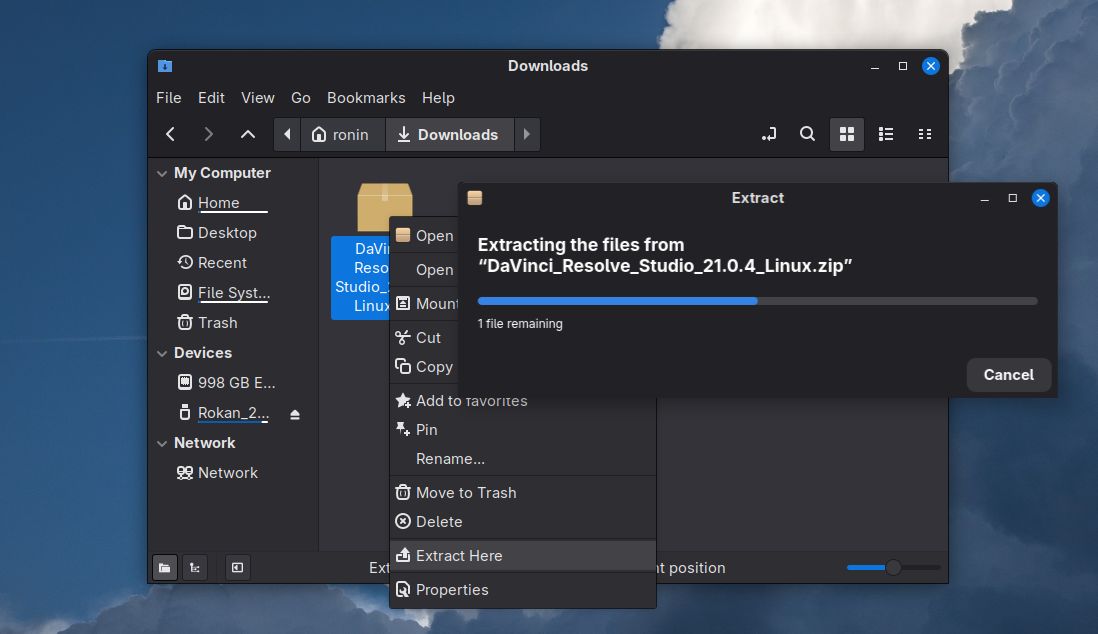
- Unzip the file into downloads folder. (Right click and extract).
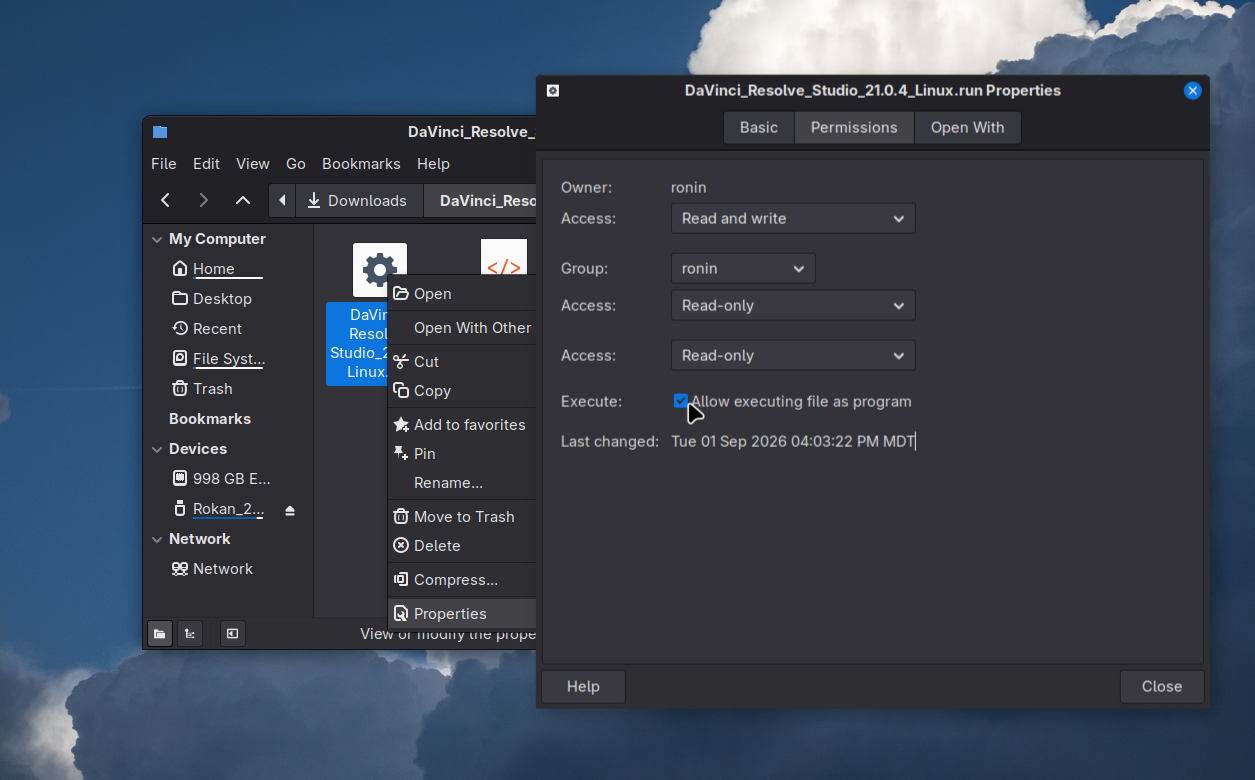
- Make sure the run file is executable. (Right click and check executable in Permission tab).
- Install Fuse2 if you didn’t during your initial setup
sudo pacman -S fuse2orsudo dnf install fuse-libs sudo pacman -S libxcrypt-compatorsudo dnf install libxcrypt-compatto prevent a missinglibcrypt.so.1error.- When you try to run installer, it will prompt any missing packages you will need to install prior to running the installer.
- The most common packages it asks for on Fedora are
sudo dnf install apr apr-util mesa-libGLU
- The most common packages it asks for on Fedora are
- Double click the
.runfile and install DaVinci.
Troubleshooting
Non-RHEL Binary Distros - Fixing DaVinci Libraries (Necessary Fix)
You will need to move/rename a series of outdated glib files since DaVinci is made for RHEL binary distros like Rocky and AlmaLinux still on version 8-9 which rely on older glibs.
cd /opt/resolve/libs && sudo mkdir archived-libs && sudo mv libglib* libmodule* libgobject* archived-libs
GPU Full Error (Recommended Fix)
In most cases, running DaVinci will show a GPU full error in the edit page because it’s attempting to load on the motherboard Integrated graphics (iGPU) instead of your Discrete GPU (dGPU). Take note it is also best to run on an x11 system instead of Wayland for best performance.
- Then open the DaVinci Resolve desktop file with your text editor of choice (I use VSCodium) in
/usr/share/applications/DaVinciResolve.desktopThere should be a line to insert environment variables. You will need sudo privileges.- Replace the
Exec=line withExec=env __NV_PRIME_RENDER_OFFLOAD=1 __GLX_VENDOR_LIBRARY_NAME=nvidia /opt/resolve/bin/resolve %u
- Replace the
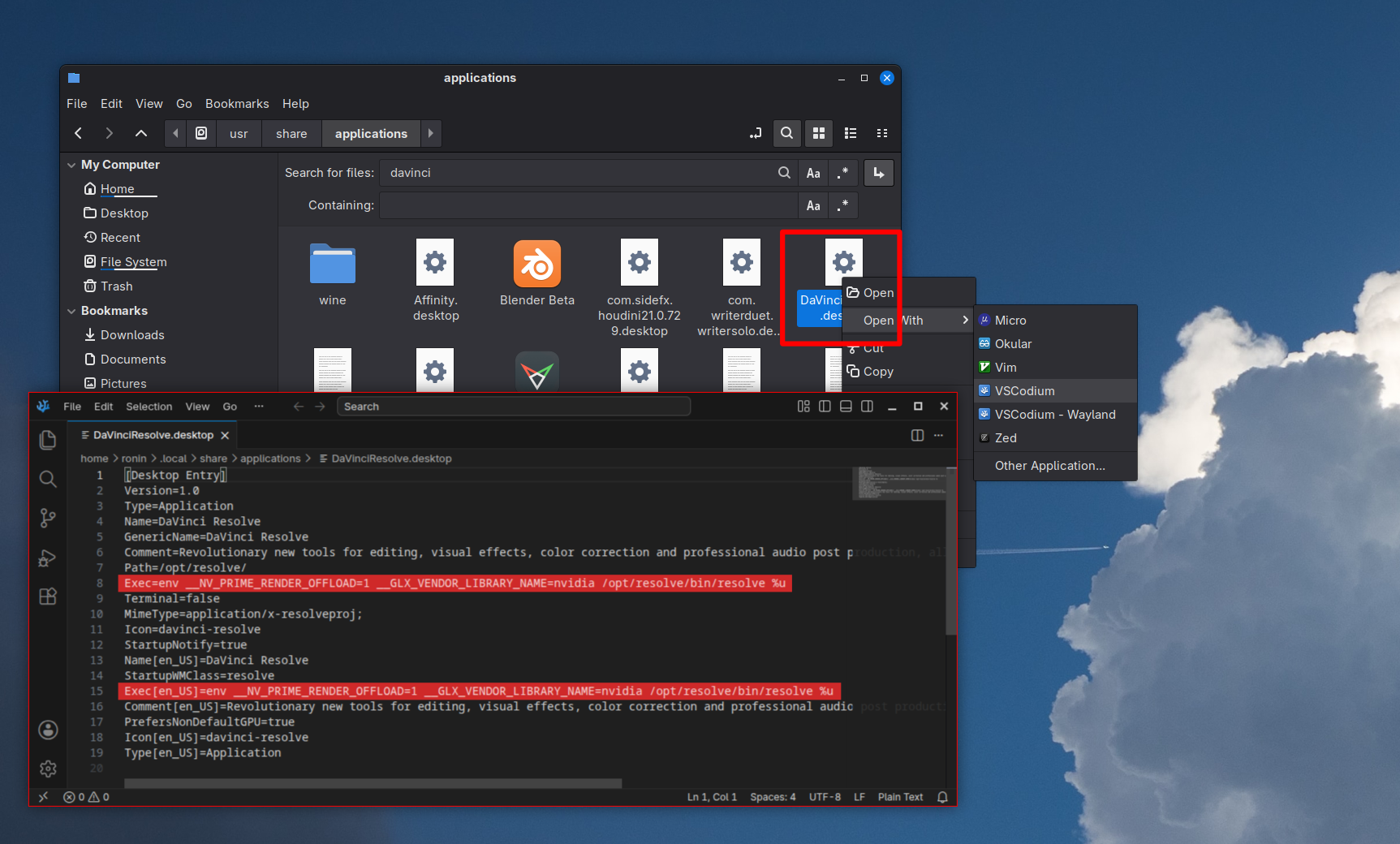
If there is an
Exec[en_US]=line make sure to paste the environment variable there as well!
Davinci won’t Start or Crashes on Wayland
Davinci is looking for certain elements from X11 that need to be pointed to XWayland in the Environment Variables.
Add QT_QPA_PLATFORM=xcb at the beginning of your Exec=env QT_QPA_PLATFORM=xcb __NV_PRIME_RENDER_OFFLOAD=1 __GLX_VENDOR_LIBRARY_NAME=nvidia /opt/resolve/bin/resolve %u in the desktop launcher file.
Installing on “Vanilla” Arch and Arch-based distros like Omarchy
If you are installing on Vanilla Arch, at least 5 dependencies are old enough they are no longer included in the actively maintained pacman repos. gtk2, libpng12, qt5-webchannel, qt5-location, qt5-webengine. Once they are installed you can follow the instructions at the top of the page like usual.
Install Missing Packages from Pacman Archive
Missing packages can also be installed from the arch linux archive which is faster than the AUR compiling method. Installing from the AUR is an option, BUT it will take forever because they need to be compiled one by one. (When I have done it, it took hours.)
sudo pacman -U https://archive.archlinux.org/packages/g/gtk2/gtk2-2.24.33-5-x86_64.pkg.tar.zst https://archive.archlinux.org/packages/l/libpng12/libpng12-1.2.59-2-x86_64.pkg.tar.zst https://archive.archlinux.org/packages/q/qt5-webchannel/qt5-webchannel-5.15.9+kde+r3-1-x86_64.pkg.tar.zst https://arch
ive.archlinux.org/packages/q/qt5-location/qt5-location-5.15.9%2Bkde%2Br4-1-x86_64.pkg.tar.zst https://archive.archlinux.org/packages/q/qt5-webengine/qt5-webengine-5.15.9-3-x86_64.pkg.tar.zst
Add Archive Pacages to Pacman Ignore List
If you don’t add these 5 items to the pacman ignore list, then when you try to do a system update, your AUR helper will automatically detect the packages and try to compile them from the AUR.
Using your editor of choice, add the excerpt below to the [options] section of /etc/pacman.conf
sudo nano /etc/pacman.conf
# Ignore DaVinci Resolve Pacman -U Archives
IgnorePkg = gtk2 qt5-webchannel qt5-location qt5-webengine libpng12
Other Videos for AMD Users and Free Version
- DaVinci on Fedora AMD https://www.youtube.com/watch?v=jLq7D1rxQeM&t=11s
- DaVinci Free AMD on CachyOS https://www.youtube.com/watch?v=u_b9PSNlkPA&t=101s
- DaVinci on Bazzite https://www.youtube.com/watch?v=iQtX6YfkiOU&t=723s
- DaVinci Troubleshooting on Linux https://www.youtube.com/watch?v=oHsboGBxUuc
Other Important Information
Media Imports with No Audio or Video
Missing Codecs
DaVinci Resolve Studio on Linux does not support AAC audio codec. It does support H.264/H.265 and all other codecs.
DaVinci Resolve (Free) on Linux supports limited H.264 and does not support H.265 codecs or AAC audio. It’s recommended that you use DaVinci Resolve Studio on Linux.
Why? DaVinci Resolve piggybacks off of a Windows or MacOS internal AAC license. Linux operating systems ARE compatible with AAC codec but do not license AAC at a system level, so DaVinci can’t piggyback off of that. They don’t fix this because the main VFX industry clients who use the Linux version for do not need AAC codecs and generally transcode their footage into editing formats anyways, so they don’t bother to purchase the license.
Record in Universal Formats or Transcode Footage
Many cameras can record in H264/H265 with PCM audio, fully compatible for Studio version. If you are recording screen on OBS Studio, you will need to set the audio codec to Opus or PCM.
Media from stock websites or cameras with unsupported codecs can be transcoded with ffmpeg, Handbrake or Shutter Encoder to H264/PCM, AV1 or an editing format like ProRes or DNxHD on both free and studio versions (a common practice in the film industry).
Importing config.ocio Fails (for Blender Color Space Transforms)
If you attempt to import a blender config.ocio file in the Fusion or Color Page, it will appear empty.
Resolve on Linux currently uses /opt/resolve/libs/libOpenColorIO.so.2.4 meaning that it only supports importing OCIO files that are v2.4 and lower. For example, the current Blender config.ocio is ocio_profile_version: 2.5.1 so that can be an issue.
Use Compatible OCIO Version
Easy solution is to just find an earlier version of your file. In my case for Blender, I use the blender 5.0 color management folder and config.ocio since It is only version 2.4 https://github.com/blender/blender/blob/blender-v5.0-release/release/datafiles/colormanagement/config.ocio
If a config.ocio fails to import, you can also check its file health in the terminal to ensure it’s not corrupted or broken.
ociocheck --iconfig /your/file/path/to/config.ocio- If you need blenders current ocio, make a copy of its color management folder to your home folder
~/colormanagement/and edit the config.ocio file and just change the version number to 2.4. (ANything that uses code from 2.5+ will break, but the ACES, Kronos and AgX color spaces still work.)
AlmaLinux Versions
Warning
AlmaLinux, Rocky and Red Hat all have active support for versions 8, 9 & 10. RHEL binary distros in version 8 & 9 should work with the davinci installer without many issues, but version 10 comes with newer zlib libraries meaning you will need to use the recommended and necessary fixes from the troubleshooting section!